Case & Matter Management
Guide #14: Case Workspace Overview
Complete visual guide to the dedicated Case Workspace Overview (/cases/[id]): tenancy header, dispute banner, live Next Actions & Directives queue, Matter Snapshot and 10-stage lifecycle roadmap, Work To Do checklists, and Document Vault & Client Communication hubs.
8 min read•Case Workspace•Updated October 2026
Prerequisites
- Active Advocate Solo Practice Workspace (/lawyer)
- Registered Legal Matter created via the + New Matter modal
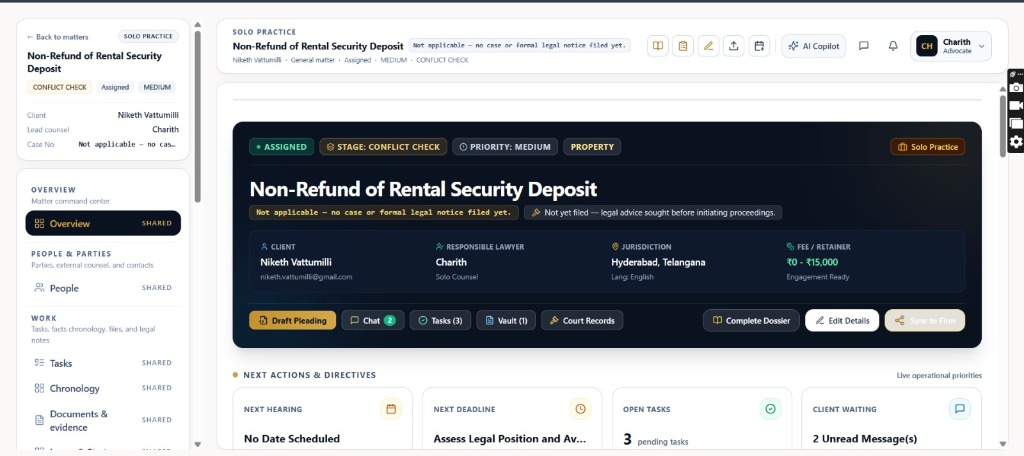
1.Workspace Header, Tenancy Banner & Quick Action Docket
The top command header provides immediate dispute context, billing status, tenancy isolation, and one-click action buttons.
Controls:Draft Pleading(Primary amber button)Chat (2)Tasks (3)Vault (1)Court RecordsComplete DossierEdit DetailsSync to Firm
- Tenancy & Breadcrumb Bar: Displays 'SOLO PRACTICE', active Matter Caption ('Non-Refund of Rental Security Deposit'), and filing notation ('Not applicable — no case or formal legal notice filed yet.').
- Header Utility Docket: Fast shortcuts for Complete Dossier export, Quick Notes, Matter Edit, Upload File, Court Calendar, AI Copilot, Chat, and Notification alerts.
- Hero Status Badges: Top banner highlights real-time workflow tags — '• ASSIGNED', 'STAGE: CONFLICT CHECK', 'PRIORITY: MEDIUM', 'PROPERTY', and 'Solo Practice' isolation.
- Case Parameters Grid: Displays linked Client ('Niketh Vattumilli' · [email protected]), Responsible Lawyer ('Charith' · Solo Counsel), Judicial Forum ('Hyderabad, Telangana' · Lang: English), and Retainer Range ('₹0 - ₹15,000' · Engagement Ready).
- Persistent Action Toolbar: Fast-action buttons to 'Draft Pleading', 'Chat (2)', 'Tasks (3)', 'Vault (1)', 'Court Records', 'Complete Dossier', 'Edit Details', and 'Sync to Firm'.
- Detailed Guide: Learn how to manage advocate chamber settings and tenancy isolation in Advocate Workspace Settings & Chambers↗.
- Detailed Guide: Seamlessly connect your private caseload to associated law firms in Law Firm Matter Sync & Association↗.
Chamber Authentication Required
Step 1 is shown above as a preview. All remaining procedural steps, litigation blueprints, and interactive controls require an active chamber or firm login.
Frequently Asked Questions
- How do I switch between the Overview and other workspace tabs like Documents or Strategy?
- Use the left sub-navigation sidebar located directly under the matter caption to switch seamlessly between Overview, People, Tasks, Chronology, Documents & Evidence, Issues & Strategy, Notebooks, Finances, Closing, and Activity.
- Can I customize the 10-stage lifecycle stepper for different types of cases?
- Yes. When creating a matter, the Practice Area (e.g. Civil Litigation, Criminal, Property, Corporate) automatically configures the appropriate statutory lifecycle milestones. You can update or advance stages anytime using the Stage Editor dropdown.
- Is the case chat privileged and secure from opposing parties?
- Yes. Briefly enforces strict tenant isolation and Section 126 attorney-client privilege encryption. Opposing counsel or external stakeholders never have access to your private client channel.
Was this guide helpful?
Your feedback directly shapes our support documentation.