Legal OS for Advocates
Guide #12: Workspace & Chamber Settings
Comprehensive guide to configuring your lawyer workspace settings: professional bio, 12 practice area tags, consultation rate card, chamber street address with live preview, KYC document management, notification preferences, and Cashfree client settlement bank account.
6 min read•Chamber Settings & Operations•Updated October 2026
1.Workspace Header, Practice Scope & Bar Verified Badges
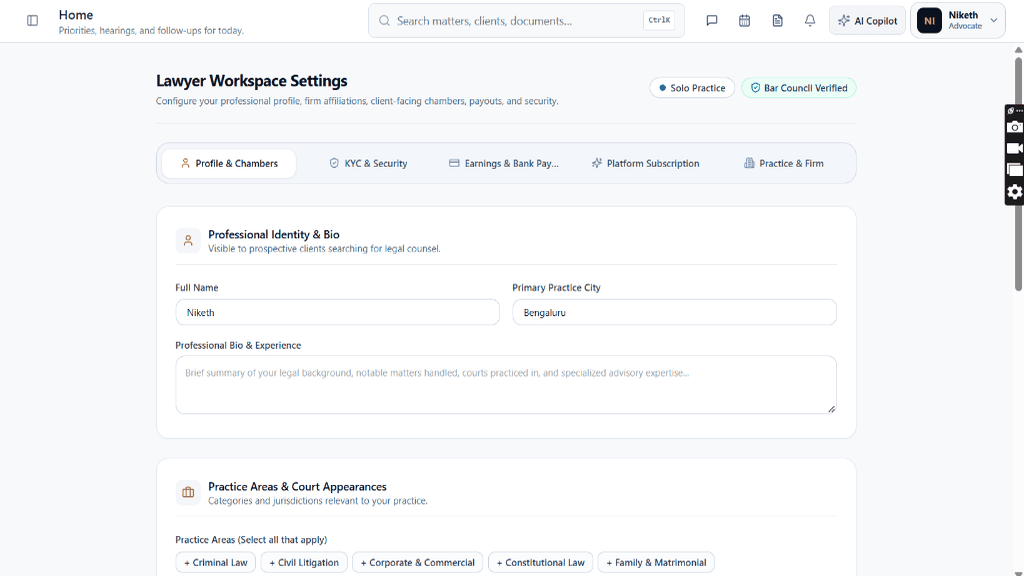
Navigate to `/lawyer/settings` or `/settings` to inspect your chamber status and navigation tabs.
Controls:Solo Practice BadgeBar Council Verified BadgeProfile & Chambers TabKYC & Security TabEarnings & Bank Payouts Tab
- Displays 'Lawyer Workspace Settings' with scope description.
- Solo Practice Indicator: Green dot badge confirming independent private practice scope.
- Bar Council Verified Badge: Green shield badge verifying statutory Bar Council credentials.
- 5 Core Tabs: 'Profile & Chambers', 'KYC & Security', 'Earnings & Bank Payouts', 'Platform Subscription', and 'Practice & Firm'.
Chamber Authentication Required
Step 1 is shown above as a preview. All remaining procedural steps, litigation blueprints, and interactive controls require an active chamber or firm login.
Frequently Asked Questions
- Does updating my chamber address update past invoices?
- No. Existing finalized tax invoices retain the address at the time of issuance for tax audit integrity. New invoices will automatically adopt your updated chamber address.
- How do clients see my consultation fee rate?
- When prospective clients discover your profile in the Briefly marketplace, your standard consultation fee (e.g. ₹1500) is displayed alongside available booking slots.
Was this guide helpful?
Your feedback directly shapes our support documentation.