Guide #5: Tasks & Legal Workflows
Complete step-by-step walkthrough for advocates: why procedural workflows prevent missed statutory deadlines in Indian courts, how to deploy 1-click procedural blueprints (Civil Suits, Criminal Bail, Arbitration), enforce predecessor task dependencies, link case participants and evidence documents, and execute actionable dockets.
- Active Advocate Account (Solo Practice Workspace or Firm OS)
- Registered Legal Matter or Case Workspace (/cases/[id] or /lawyer/tasks)
- Basic matter details: Client identity, case category, and optional vault documents
1.Why This Feature Matters, Navigating the Docket & Right-Hand Checklist Panels
Access the unified Matter Tasks & Legal Workflows board to manage all active procedural requirements, filter by operational status, and monitor statutory checklists.
- Why This Feature Matters in Indian Practice: Indian procedural law imposes unforgiving statutory deadlines — such as Order VIII Rule 1 CPC (30-day written statement cap extending up to 120 days in commercial disputes), Section 138 NI Act (15-day statutory demand notice), and Section 439 CrPC bail filings. Missing a procedural deadline can lead to forfeiture of defense or dismissal of petition. The Tasks & Workflow engine acts as a proactive fail-safe.
- Live Workload Summary: The top docket counter provides an instant pulse of your case's procedural velocity: '4 open · 1 due today · 1 overdue · 2 blocked by dependencies · 1 completed'.
- Comprehensive Status Filter Pills: Click across the specialized filter badges to isolate specific dockets:
- • All (5): Displays the entire universe of tasks (open, overdue, blocked, and completed) associated with this legal matter.
- • Open (4): Filters all pending tasks that require active attention, research, drafting, or filing.
- • Due Today (1): Isolates urgent tasks expiring on the current calendar day so chamber staff can file before court registry closing hours.
- • Overdue (1): Flags critical statutory lapses with prominent red borders and warning alerts (e.g., 'OVERDUE - 12/10/2026, 3:40 pm · Priority: Medium'), warning senior counsel of imminent limitation risks.
- • Blocked (2): Highlights tasks locked by predecessor dependencies that cannot be initiated until prerequisite milestones are signed off.
- • Completed (1): Displays finished tasks (e.g., 'Review Rental Agreement and Evidence' with green checkmark and 'Revert' control) for historical audit verification.
- Right-Hand Panel — Matter Checklists (Active Checklist Runs): Positioned on the right sidebar, this module tracks active multi-step compliance checklists and procedural SOP runs currently executing on the matter (e.g., registry defect clearance, evidence scrutiny). When none are active, it displays 'Active Checklist Runs (0) · No active checklist runs on this matter.'
- Right-Hand Panel — Procedural Templates (Available Checklists): Scans your firm's SOP repository and automatically surfaces pre-configured legal checklists matched to your case type (e.g., tenancy recovery, recovery of debt, summary suits). When a case type has no custom rule matched, it shows 'Available Checklists (0) · No checklist templates matched this case type.'
- Shared vs. Private Visibility Toggle: Toggle between 'Shared' (visible to client and permitted stakeholders) and 'Private' (strictly confidential defense strategy, internal chamber notes, and witness cross-examination prep).
- Search & Categorization Controls: Use 'Search tasks, entity, cnr...' for instant keyword lookups, alongside dropdowns for Category, Due Date (Soonest), and Priority filters.
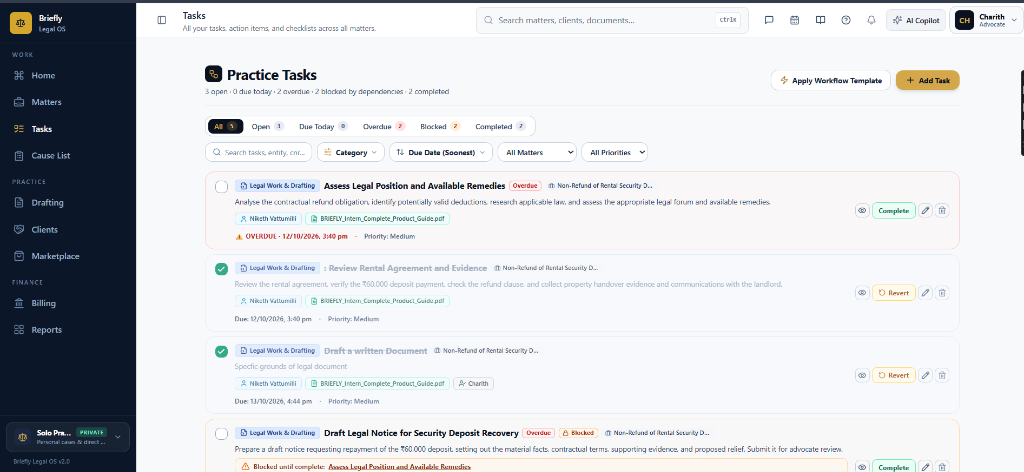
Unlike generic task managers, Briefly Legal OS workflows integrate Indian statutory limitation periods, courtroom stages, and case participant relations. Overdue tasks automatically trigger visual flags and sync with your Advocate Daily Cockpit.
Chamber Authentication Required
Step 1 is shown above as a preview. All remaining procedural steps, litigation blueprints, and interactive controls require an active chamber or firm login.
Frequently Asked Questions
- Why should I use Legal Workflows instead of a standard to-do list?
- Standard to-do lists lack legal context. Briefly Legal OS Workflows enforce predecessor dependencies (preventing premature filings before conflict checks or KYC clearance), calculate statutory limitation timelines under Indian procedural laws (CPC, CrPC, NI Act, Arbitration Act), and link directly to case participants and evidence documents in the vault.
- What is the difference between Shared and Private tasks?
- Shared tasks are visible to authorized clients in their Client Portal, allowing them to track procedural milestones without calling the advocate. Private tasks are strictly isolated to the advocate and chamber defense team, ensuring client confidentiality and attorney-client work product privilege under the Indian Evidence Act.
- Can clients or associates see my Private Space tasks?
- No. Private Space tasks are protected by tenancy isolation and are visible exclusively to the assigned counsel. Neither the client nor unauthorized participants can view, edit, or search private tasks.
- How do Predecessor Task Dependencies work?
- When a task has a predecessor assigned, it is placed in 'Blocked' status. The assignee cannot accidentally mark it complete or file documents until the preceding requirement (such as obtaining a signed Vakalatnama or receiving Title Search extracts) is formally completed.
- Can I customize the tasks after generating a workflow template?
- Yes. Once an 11-step or 8-step workflow template is generated, each individual task can be edited, reassigned, rescheduled, or deleted to match the unique factual dynamics of your dispute.
- What are Matter Checklists and Procedural Templates shown on the right sidebar?
- The right sidebar hosts institutional quality controls: 'Matter Checklists (Active Checklist Runs)' tracks live procedural SOP runs (such as court scrutiny defect clearance or affidavit verification batches) executing on this specific case. 'Procedural Templates (Available Checklists)' scans your chamber's SOP library to recommend pre-defined checklists matching the current dispute type (e.g., summary suit, eviction, arbitration notice).
Was this guide helpful?
Your feedback directly shapes our support documentation.