Guide #19: Legal Notebook & Speaking Briefs
Complete step-by-step walkthrough for advocates: create podium-ready practice notebooks, leverage the Matter Entity Quick-Insert & Citation Ribbon, structure oral arguments and SCC citations with voice dictation, track procedural filing readiness, and generate instant WhatsApp client dispatches.
- Active Matter Workspace (/cases/[id])
- Case documents, trial exhibits, or upcoming hearing listings
- Drafting arguments, SCC/AIR citations, or courtroom speaking notes
1.Access Notebooks Library & Create a Practice Notebook
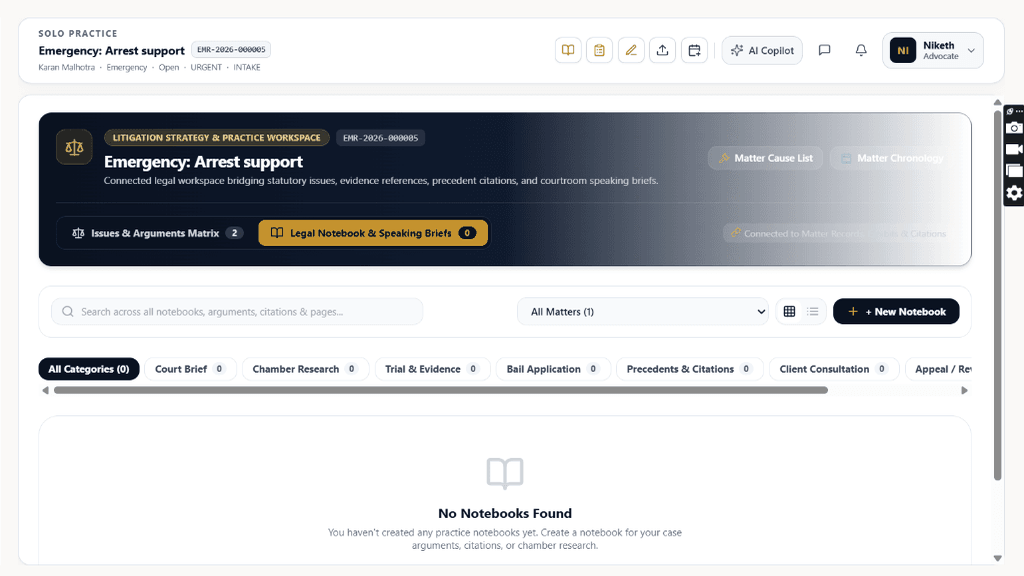
Open the 'Legal Notebook & Speaking Briefs' workspace from your matter strategy cockpit or navigate to your chambers notebook library to create a structured practice binder.
- Workspace Switcher: On `/cases/[id]?tab=strategy`, toggle the top navigation bar from 'Issues & Arguments Matrix' to 'Legal Notebook & Speaking Briefs' (displaying active notebook count, e.g., '6').
- Notebooks Library Filter Bar: Use the search input to query arguments and case citations across all notebooks. Filter by matter ('All Matters (1)') or toggle between Grid View and List View.
- Category Filter Tabs: Rapidly filter notebooks across 8 practice categories: 'All Categories', 'Court Brief', 'Chamber Research', 'Trial & Evidence', 'Bail Application', 'Precedents & Citations', 'Client Consultation', and 'Appeal / Review'.
- Create Practice Notebook Modal: Click '+ New Notebook' to open the creation dialog:
- • Notebook Title: Enter a distinct, purpose-driven title (e.g., 'Rental Deposit Dispute — Evidence & Legal Research' or 'Arguments on Interim Relief / Stay — Arguments Brief').
- • Associate with Matter (Optional): Connect directly to an active litigation matter (e.g., 'Non-Refund of Rental Security Deposit').
- • Connect to Hearing (Optional): Pin directly to an upcoming hearing docket (e.g., 'Hearing: 0 (12/10/2026)') or select 'General Matter Brief'.
- • Category Tag: Categorize as 'Court Brief', 'Chamber Research', 'Trial & Evidence', 'Bail Application', etc.
- • Cover Theme Color: Personalize with distinctive leather/canvas colors: '🎨 Navy Blue', 'Emerald Green', 'Burgundy / Crimson', 'Amber Gold', or 'Slate Gray'.
- • Review Status: Set initial lifecycle state ('📝 Draft', 'Under Review', 'Ready for Court', or 'Archived').
- • Assigned Junior / Counsel: Delegate drafting responsibility to a specific chamber junior (e.g., 'Adv. Ananya Rao').
- • Pre-configured Multi-Tab Pages: Automatically provisions 3 foundational practice pages: '1. Arguments & Submissions', '2. Precedents & Citations', and '3. Court Orders & Outcome'.
When you link a notebook to a scheduled hearing listing, your courtroom arguments, citations, and recorded bench orders automatically sync to your Daily Court Diary and Cause List dockets.
Chamber Authentication Required
Step 1 is shown above as a preview. All remaining procedural steps, litigation blueprints, and interactive controls require an active chamber or firm login.
Frequently Asked Questions
- Can I use the Legal Notebook offline on my iPad or tablet in court?
- Yes. Briefly Legal OS supports Progressive Web App (PWA) offline caching with local storage persistence. Your active notebooks and speaking briefs remain fully readable and editable even in deep courtroom basements with zero cellular coverage.
- How does the Legal Notebook connect with the Litigation Issues Matrix (Guide #10)?
- The Legal Notebook and Issues Matrix live in the same unified litigation strategy cockpit. While the Issues Matrix defines formal Order XIV CPC triable issues, the Legal Notebook serves as the lawyer's working speaking brief. You can insert issues into your notes using '+ Litigation Issue' and jump between the two with the 'Issues & Strategy Matrix →' launcher.
- Can I export my notebook notes into a formal court pleading or petition?
- Yes. Click 'Brief 🖨️' to generate an optimized, podium-friendly speaking binder, or transfer your structured arguments directly into Paper Studio (Guide #8) to assemble formatted plaints, written statements, or written submissions with statutory 1.75-inch court margins.
- Do junior counsel notes automatically sync with the senior partner's view?
- Yes. Notes auto-save continuously to the matter cloud. When a junior counsel is assigned and drafts submissions or completes checklist items, the supervising advocate sees live updates in real time.
Was this guide helpful?
Your feedback directly shapes our support documentation.