Legal OS for Advocates
Guide #3: Profile, Settings & Security
Complete guide to the advocate user profile dropdown: KYC & Bar Council verification, chamber settings & fee rate cards, 2FA security & active sessions, Cashfree billing payouts, and drafting studio templates.
5 min read•Chamber Settings & Security•Updated October 2026
1.Advocate Profile Header & Bar Council Badges
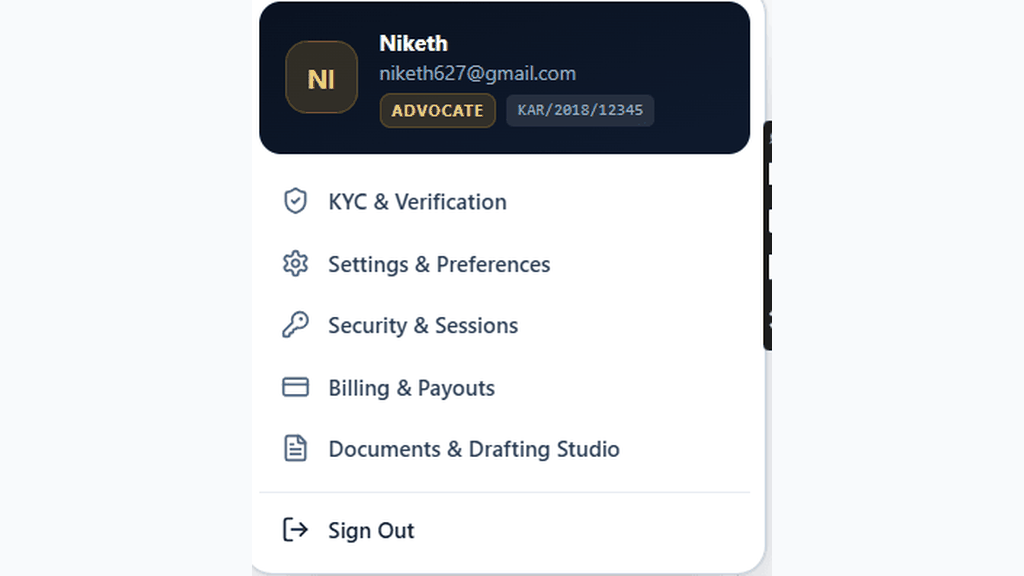
Access your quick identity summary by clicking your profile avatar in the top navigation bar.
Controls:Profile Dropdown TriggerBar Council ID Badge
- Displays advocate initials avatar, registered full name, and email address.
- Verified Role Badge: Displays 'ADVOCATE' confirming verified practitioner status.
- State Bar Council ID Badge: Displays your registered enrolment number (e.g. `KAR/2018/12345` or `D/1234/2019`).
Chamber Authentication Required
Step 1 is shown above as a preview. All remaining procedural steps, litigation blueprints, and interactive controls require an active chamber or firm login.
Frequently Asked Questions
- Can I update my Bar Council registration number after account creation?
- Yes. You can submit an update request under KYC & Verification with supporting documentation. Our compliance team will review and update your verified badge within 24 hours.
- What happens when I click 'Terminate All Other Sessions'?
- All active logins on other laptops, mobile devices, or office computers are immediately logged out and their session tokens are revoked.
Was this guide helpful?
Your feedback directly shapes our support documentation.