Getting Started & Profiles
Sign In, OTP Authentication & Password Recovery
How to authenticate using password, phone OTP, magic links, Emergency EMR IDs, and restore lost credentials.
3 min read•Account•Updated October 2026
1.Sign In Using Email or Mobile Phone
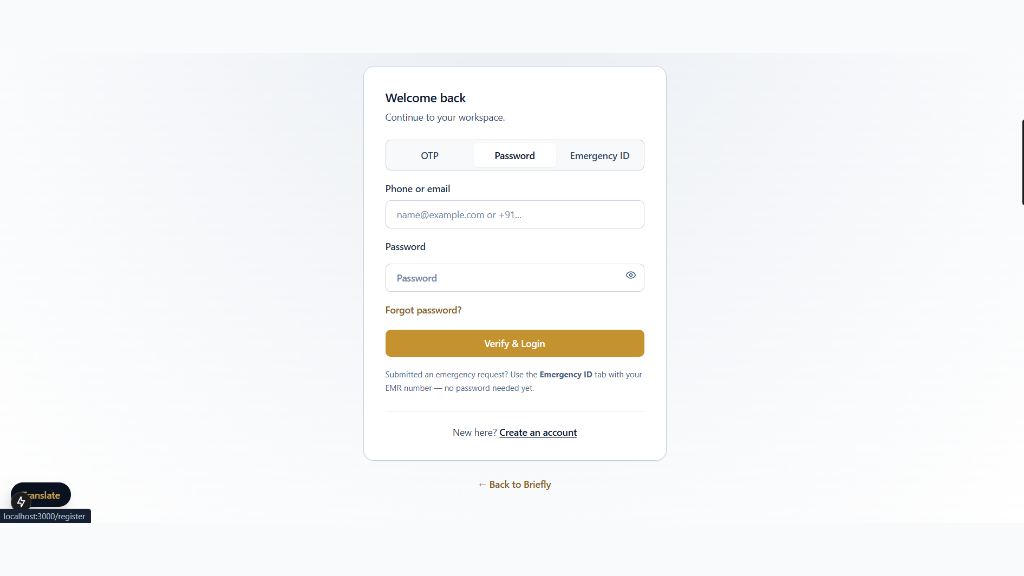
Navigate to `/auth/login` and input your registered credentials.
Controls:Email / Phone InputPassword InputRequest OTP
- You can sign in with your Email Address and Password, or click 'Send OTP' for instant phone-based SMS verification.
- If 2-factor authentication (2FA) is enabled, enter your 6-digit authenticator app code when prompted.
2.Emergency Case Lookup via EMR Reference ID
For urgent cases created via the Emergency Desk, you do not need an upfront password.
Controls:Emergency TabEMR Reference ID
- Click the 'Emergency Case' tab on the login screen.
- Enter your 8-digit EMR Reference ID (e.g. `EMR-8821-DEL`) and the phone number provided during intake.
3.Recovering Forgotten Passwords
Click 'Forgot Password?' below the login form to receive a secure time-limited reset token.
- Enter your registered account email.
- Click the reset link in your inbox within 60 minutes to establish a new strong password.
Security Note
Password reset links expire immediately after a single use. Reset tokens are cryptographically salted.
Ready to put this workflow into practice?
Sign in to your chamber account to manage matters, CNR cause lists, client communications, and billing.
Frequently Asked Questions
- What if I didn't receive the OTP SMS?
- Wait 45 seconds and click 'Resend OTP'. Ensure your device has active cellular coverage. If issues persist, select 'Login via Email Link'.
Was this guide helpful?
Your feedback directly shapes our support documentation.