Firm OS & Practice Operations
Firm OS Complete Sidebar Navigation Directory
Master visual directory of all 8 core sidebar modules, 32 specialized practice sub-sections, URL endpoints, and keyboard shortcuts across Briefly Firm OS Enterprise.
6 min read•8. ADMINISTRATION•Updated October 2026
Prerequisites
- All Firm Members
1.Understand the 8-Section Navigation Structure
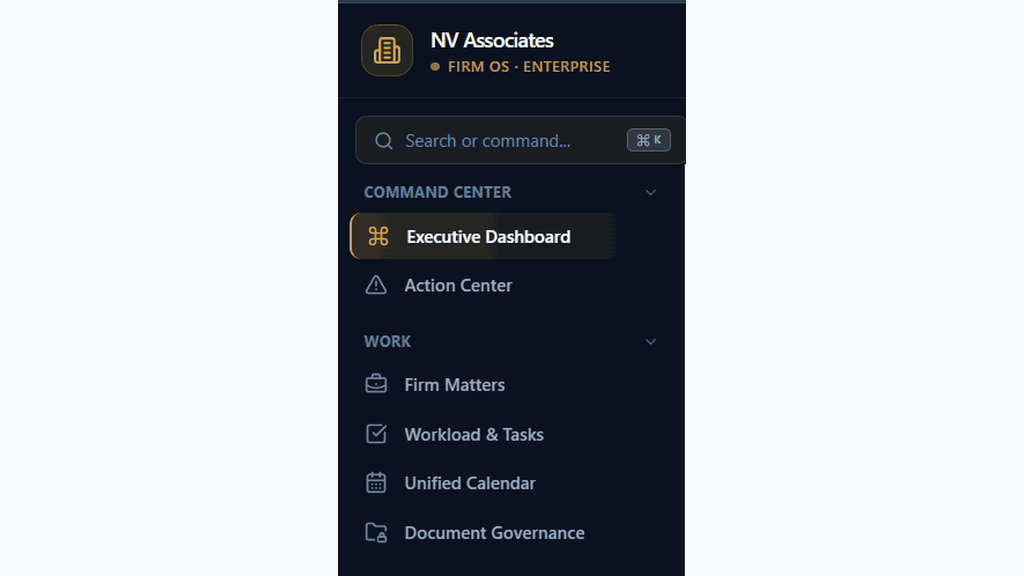
Review the navigation rail on the left side of your Firm OS workspace.
Controls:Sidebar Navigation Rail⌘K Quick Switcher
- Why it is there: To provide instantaneous, structured access to all operational tools across the firm.
- How it helps: Organizes 32+ specialized modules into 8 intuitive practice workflows with unified ⌘K search.
- 1. COMMAND CENTER: Executive Dashboard & Action Center.
- 2. WORK: Firm Matters, Workload & Tasks, Unified Calendar, Document Governance.
- 3. PEOPLE & ORG: Client Directory, Lawyers, Staff & Paralegals, Teams & Hierarchy.
- 4. CLIENTS & GROWTH: Lead Pipeline, Consultations, Client Relationships.
- 5. FINANCE & BILLING: Time & Billing Ledger, Invoices & Splits, Payments & Collections, Financial Reports.
- 6. KNOWLEDGE & AI: Knowledge Hub, AI Usage & Quotas, AI Controls & Governance.
- 7. ANALYTICS: Firm Analytics, Matter Analytics, Lawyer & Team Analytics.
- 8. ADMINISTRATION: Members & Seats, Roles & Permissions, Firm Settings, Subscription & Plan, Communications, Templates & Checklists, Workflow Automation, Security & Audit Logs, Help & User Manuals.
Chamber Authentication Required
Step 1 is shown above as a preview. All remaining procedural steps, litigation blueprints, and interactive controls require an active chamber or firm login.
Was this guide helpful?
Your feedback directly shapes our support documentation.